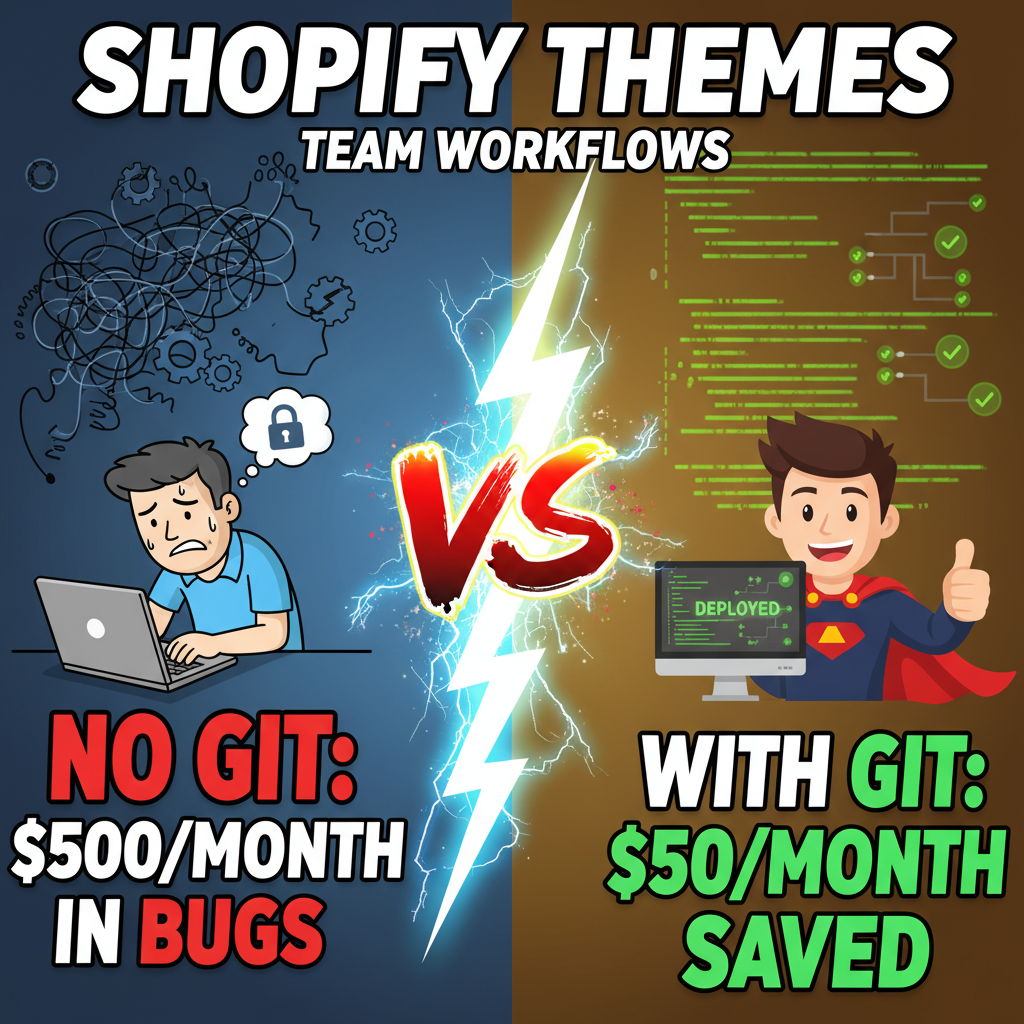
Shopify Theme Version Control: Git Workflows for Teams
Slug
shopify-theme-version-control-git-workflows
Excerpt
Master Shopify theme development with Git. Learn branching strategies, deployment workflows, and team collaboration best practices for Shopify themes.
SEO Meta Data
- Title: Shopify Theme Version Control: Git & Team Workflows
- Description: Complete guide to Git version control for Shopify theme development. Learn branching, deployment, and team workflows for production themes.
- Canonical URL: https://tenten.co/shopify/shopify-theme-version-control-git-workflows
Rich Text Content
Why Version Control Matters for Shopify Themes
Shopify theme development without version control is chaos. One developer overwrites another's work. A broken CSS change deploys to production. Your design system fragments across 3 different theme files. You can't roll back 2 weeks of work because "someone changed something."
Version control—specifically Git—solves this. It's the difference between professional development and hobby coding.
Most Shopify developers skip this and pay the price: lost code, deployment disasters, and teams that can't collaborate. Operators implement version control from day one.
The Challenge: Shopify Themes Aren't Normal Code Repositories
Standard software teams use Git for code. Shopify themes are partially code (HTML, CSS, JavaScript) and partially data (product information, inventory, settings stored in config.json and theme_settings_schema.json).
The problem: Shopify's theme editor is a GUI. Developers push changes directly to production via the admin panel. It's version control's worst enemy—changes disappear into a black box, no history, no rollback capability.
The solution: Shopify's CLI (Command Line Interface) + Git workflow. This gives you version control, team collaboration, and deployment automation.
The Standard Workflow: Development → Staging → Production
Here's what professional Shopify teams do:
Repository structure:
shopify-theme/
├── main (production theme)
├── develop (staging/integration)
├── feature/cart-optimization (feature branch)
├── hotfix/checkout-bug (hotfix branch)
└── docs/ (theme documentation)
Branching strategy (Git Flow for Shopify):
main: Production theme. Only merged code here goes live to paying customers.develop: Staging theme. All features integrated here for QA before production.feature/*: Individual developer branches. You develop features here, then merge todevelopvia pull request.hotfix/*: Emergency production fixes. Branch frommain, test immediately, merge back tomainanddevelop.
Developer workflow for a single feature:
- Create feature branch:
git checkout -b feature/product-page-redesign - Make changes locally (edit Liquid, CSS, JavaScript)
- Test locally using
shopify theme dev(Shopify CLI spins up a local dev environment) - Commit changes:
git commit -m "Add product comparison table to PDP" - Push to remote:
git push origin feature/product-page-redesign - Create pull request (PR) on GitHub/GitLab requesting code review
- Teammate reviews code, suggests changes if needed
- Merge PR to
developonce approved - QA team tests in staging environment
- Product owner approves
- Merge
develop→main(production) - Deploy using Shopify CLI:
shopify theme push --liveonmainbranch only
This process prevents disasters. You have history, you have review, you have testing gates.
The Git Workflow in Practice: Three Real Examples
Example 1: New Feature (Cart Drawer)
Team: 2 developers, 1 designer, 1 QA.
Developer A creates: feature/cart-drawer-mobile
- Designs mobile cart UI (CSS modifications)
- Adds JavaScript for open/close animations
- Updates
cart-drawer.liquidtemplate - Tests locally:
shopify theme devopens a preview on localhost
Commits:
feat(cart): add mobile cart drawer with animations
- CSS for drawer positioning and transitions
- JavaScript for toggle and close-on-click behavior
Pushes to GitHub → Creates PR with screenshot of cart drawer in action.
Developer B reviews PR → Comments on CSS specificity. Developer A adjusts.
Merge approved → Merged to develop.
QA tests on staging theme → No issues.
Product owner approves → Merged to main.
Deploy: shopify theme push --live → Change live to all customers within 10 seconds.
Rollback (if needed): Previous commit is in Git history. One command: git revert HEAD and push again.
Example 2: Production Bug (Checkout Not Loading)
Urgent issue: Checkout page shows blank on some browsers. Customers can't complete orders.
Create hotfix: hotfix/checkout-browser-compat
- Quick diagnosis: JavaScript error in IE11
- Fix: Update JavaScript polyfill, test in IE11
- Commit:
fix(checkout): restore IE11 compatibility - Test on staging: Deploy to staging theme, verify fix
- Merge to main
- Deploy:
shopify theme push --live - Merge back to
developso fix is integrated into ongoing development
Time to resolution: 15 minutes. Without version control, you'd be panic-editing in the Shopify admin.
Example 3: Reverting a Bad Deployment
Developer pushes code to production. 2 hours later: "That change broke something on mobile."
With Git:
git log --oneline (see recent commits)
git revert <commit-hash> (revert that specific commit)
git push origin main (push revert)
shopify theme push --live (deploy revert)
Done in 3 minutes. Without version control, you'd be manually editing the theme in the Shopify admin trying to remember what changed.
Setting Up Git + Shopify CLI: Step-by-Step
Prerequisites:
- Git installed (Mac/Linux:
brew install git/ Windows: download from git-scm.com) - Shopify CLI installed:
npm install -g @shopify/cli @shopify/theme - GitHub account (free)
Step 1: Initialize Local Repository
cd your-theme-directory
git init
git add .
git commit -m "Initial theme setup"
Step 2: Connect to Shopify
shopify theme dev --store=yourstore.myshopify.com
Shopify CLI will prompt for authentication. Grant access.
Step 3: Create Remote Repository (GitHub)
- Go to GitHub.com, create new repo (e.g.,
your-store-theme) - Copy remote URL
- Link local repo:
git remote add origin https://github.com/you/your-store-theme.git - Push:
git push -u origin main
Step 4: Protect Main Branch (GitHub Settings)
- Go to repo settings → Branches → Add rule for
main - Require pull request reviews before merge
- Require status checks (CI/CD if you set it up)
- Prevent force pushes
This ensures no one can accidentally push directly to production.
Step 5: Create Develop Branch
git checkout -b develop
git push -u origin develop
Now developers branch from develop, not main.
Common Git Commands for Shopify Theme Teams
| Task | Command |
|---|---|
| Create feature branch | git checkout -b feature/my-feature |
| Switch branches | git checkout develop |
| See all branches | git branch -a |
| Delete local branch | git branch -d feature/my-feature |
| Pull latest code | git pull origin develop |
| Push your branch | git push origin feature/my-feature |
| See commit history | git log --oneline |
| Revert a commit | git revert <commit-hash> |
| Reset to previous state | git reset --hard <commit-hash> |
| Stash uncommitted changes | git stash |
| Apply stashed changes | git stash pop |
Deployment Automation: Optional but Powerful
Once you have Git workflow down, the next step is automated deployment:
GitHub Actions (free, built into GitHub):
name: Deploy to Shopify Production
on:
  push:
    branches: [main]
jobs:
  deploy:
    runs-on: ubuntu-latest
    steps:
      - uses: actions/checkout@v2
      - name: Push theme to Shopify
        run: |
          npm install -g @shopify/cli @shopify/theme
          shopify theme push --live --store=${{ secrets.SHOPIFY_STORE }}
        env:
          SHOPIFY_CLI_THEME_TOKEN: ${{ secrets.SHOPIFY_THEME_TOKEN }}
Result: Every push to main automatically deploys to production. No manual CLI commands needed.
For Shopify Plus, this can include approval gates, staging testing, and rollback triggers.
Training Your Team: The Curve
Most teams see resistance: "This is too complex." Two weeks later, developers won't work any other way.
Recommended training:
- Day 1: Git basics (5 commits, 3 merges, feel the workflow)
- Day 3: First pull request review
- Day 5: First hotfix scenario
- Day 10: Version control feels normal
Budget 2-3 hours total training per developer.
Common Mistakes to Avoid
Mistake 1: Editing production directly in Shopify admin
Never. All changes go through Git + local development. The Shopify admin is read-only to your team.
Mistake 2: Not protecting the main branch
Turn on GitHub branch protection day 1. Require reviews before any merge to main.
Mistake 3: Merging without testing
Test every feature on the staging theme before merging to production.
Mistake 4: Committing sensitive data (API keys, passwords)
Use .gitignore file to exclude files with secrets. Store API keys in GitHub Secrets, not in Git.
Mistake 5: Force-pushing to main
Never use git push --force on main. It's the nuclear button and breaks team history.
Ready to Professionalize Your Shopify Theme Development?
Version control isn't optional for teams. It's infrastructure. The difference between a shop that can ship weekly and a shop that's afraid to change anything.
If you're scaling a Shopify Plus store and want to set up proper development workflows, schedule a consultation. We help teams implement Git workflows, CI/CD, and deployment automation.
Editorial Note
This guide covers Git workflows specific to Shopify themes, including branching strategy, deployment best practices, and team collaboration patterns. Includes real deployment scenarios and configuration examples.
Article FAQ
Q: Do I need Git if I'm working alone?
A: Yes. Git is your rollback insurance. Even solo developers benefit from version history and the ability to revert mistakes.
Q: What's the difference between Git and GitHub?
A: Git is the version control system (local on your computer). GitHub is a cloud platform for hosting Git repositories and enabling team collaboration. You can use Git alone; GitHub requires Git.
Q: Can I use Git with the Shopify theme editor?
A: Not directly. Shopify's GUI editor and Git workflows don't play together. Use Shopify CLI + local development instead. Pull code, edit locally, push via CLI.
Q: How often should I commit?
A: After each logical change (one feature = one commit). Rule of thumb: if you can describe the change in one sentence, it's commit-sized.
Q: What happens if two developers edit the same file?
A: Git creates a "merge conflict." You manually resolve which changes to keep, then commit. This is normal and forces good communication.