GA4 Setup: From Zero to Custom Events
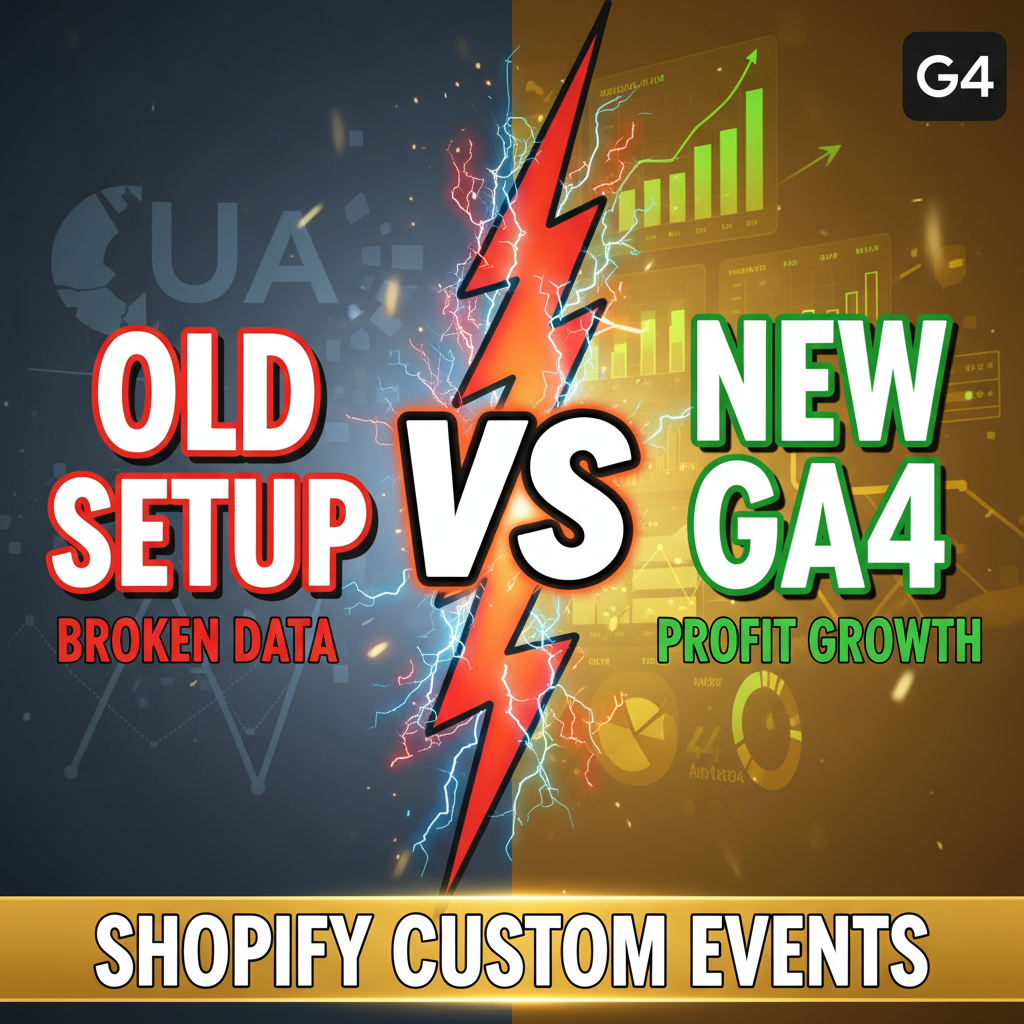
Google Analytics 4 (GA4) is not optional anymore. If you're running a Shopify store and still relying on Universal Analytics (UA), you're flying blind. GA4 fundamentally changed how e-commerce tracking works, and getting it wrong costs real revenue.
The problem: most Shopify stores implement GA4 with default settings. They track basic page views and transactions, but miss the events that actually predict behavior—product interactions, cart abandonment signals, user intent patterns. This gaps your data at exactly the moment you need it most.
We'll walk through setting up GA4 on Shopify properly. Not the surface-level setup. The version that captures every meaningful user interaction and feeds your optimization efforts.
Step 1: Connect GA4 to Your Shopify Store
Log into your Shopify admin dashboard. Navigate to Settings → Apps and integrations.
Search for Google Analytics. Click Add app. You'll be prompted to authorize Shopify to integrate with your Google account. Use the email tied to your GA4 property.
Shopify will auto-create a GA4 property if you don't have one, or you can link an existing property. If you already have GA4 set up, linking is cleaner—less duplication, one source of truth.
After authorization, Shopify injects the GA4 measurement ID (format: G-XXXXXXXXXX) into your storefront code. This is Shopify's helper layer, and it handles basic page view and transaction tracking automatically.
Critical detail: This default Shopify integration only captures standard e-commerce events—page_view, view_item, add_to_cart, purchase. You need custom events to go deeper.
Step 2: Configure Standard E-commerce Events
GA4 ships with predefined e-commerce events. Shopify's integration sends these automatically, but you need to verify they're firing.
Open Google Analytics → your GA4 property → Admin → Events. Look for these standard events:
- view_item (product view)
- add_to_cart (cart add)
- view_cart (cart page)
- begin_checkout (checkout start)
- purchase (completed order)
If these are present and have event count > 0, your base tracking is working.
Conversion tracking: Mark purchase as a conversion. Go to Admin → Conversions, click Create conversion, select purchase. Now GA4 tracks conversion rate and ROAS automatically.
If you're running ads (Google Ads, Facebook, TikTok), this conversion event feeds back to the platform for optimization. Without it, your ad algorithm is half-blind.
| Event | Fired When | Data Captured |
|---|---|---|
| view_item | Customer views a product | Product ID, name, price, category |
| add_to_cart | Item added to cart | Product ID, quantity, value |
| begin_checkout | Checkout process starts | Cart value, number of items |
| purchase | Order completes | Transaction ID, revenue, items |
| view_cart | Customer opens cart | Cart contents, total value |
Step 3: Build Custom Events (The Real Lever)
Standard events are a floor, not a ceiling. Custom events are where you build competitive advantage in data.
Example custom events worth tracking:
- Product filter applied — tells you which attributes matter (size, color, brand)
- Search executed — reveals what customers are looking for vs. what you stock
- Review viewed — social proof engagement, predicts conversion lift
- Wishlist added — intent signal stronger than add-to-cart (less buyer's remorse)
- Video watched — content engagement, strong purchase intent indicator
- Coupon clicked — price sensitivity, segment your audience
- Live chat initiated — objection surfacing, qualification signal
To fire custom events, you'll need to add code to your Shopify store. Use Shopify's script editor (Settings → Checkout → Additional scripts) or a Shopify app like Google Tag Manager (easier for non-developers).
Example using GTM (recommended for non-technical merchants):
- Install Google Tag Manager app on Shopify
- In GTM, create a new trigger: "When element is clicked, class = 'add-to-wishlist'"
- Create a tag: "Send custom event, name = 'wishlist_add'"
- Publish and test
The event now fires in GA4. Filter real user behavior from noise with these event parameters:
| Parameter | Example | Use Case |
|---|---|---|
| product_category | "Footwear" | Segment by category |
| product_price | "89.99" | Price sensitivity analysis |
| user_segment | "VIP" | High-value customer insights |
| coupon_code | "SUMMER20" | Promotion effectiveness |
| search_term | "sustainable shoes" | Product gap discovery |
Step 4: UTM Parameters and Campaign Tracking
UTM (Urchin Tracking Module) parameters tag your external links so GA4 knows traffic source.
When you share a product link on social media or email, you want to see the performance. Raw link: https://yourstore.com/products/sneakers
Tagged link: https://yourstore.com/products/sneakers?utm_source=instagram&utm_medium=social&utm_campaign=summer_collection
GA4 reads these parameters and attributes traffic to your campaign. You see Instagram → summer_collection → conversion rate instantly.
Build UTM links with Google's URL builder (search "google analytics url builder") or a tool like Terminus. Manual concatenation is error-prone.
Parameter rules:
- utm_source: Where traffic came from (instagram, email, reddit, newsletter)
- utm_medium: Type of link (social, email, cpc, organic)
- utm_campaign: Campaign name (summer_sale, bfcm_2026, product_launch)
- utm_content: Optional—differentiates similar links (ad_copy_a vs. ad_copy_b)
Example email campaign: ?utm_source=email&utm_medium=email&utm_campaign=cart_abandonment&utm_content=24h_reminder
Set up a GA4 custom report: source → campaign → conversion rate. You immediately see which channels drive revenue.
Step 5: Cross-Domain and Subdomain Tracking
If you own multiple domains or subdomains (yourstore.com + blog.yourstore.com), GA4 sees them as separate properties by default. You lose user journey visibility.
Link them:
- Admin → Data Streams → (select your stream)
- More tagging settings → Configure your domains
- Add all domains: yourstore.com, blog.yourstore.com, store.yourstore.com
- GA4 now treats them as one user journey
This is essential if your blog drives traffic to products. You see the full path: blog article → product page → cart → purchase. Attribution becomes accurate.
Step 6: Debug and Validate Your Setup
Errors in GA4 setup are silent until you look. Transactions might not fire. Events might drop. Campaigns might misattribute.
Use GA4 DebugView:
- Go to Admin → DebugView
- Open your store in a new tab
- In DebugView, you see events fire in real-time
- Add a product to cart—does add_to_cart fire?
- Complete a purchase—does purchase fire with correct revenue?
If events don't appear in 5 seconds, you have a setup issue.
Chrome extension shortcut: Install "Google Analytics Debugger" extension. Reload your store. Open DevTools → Console. You see every GA4 event logged with parameters.
Check these common issues:
- Measurement ID missing — Events won't fire at all. Check Shopify settings → GA4 installed?
- Event name mismatch — Custom event fires as "add_wish_list" but you're looking for "wishlist_add"
- Conversion not marked — Transactions fire but don't count as conversions. Mark purchase as conversion in GA4
- UTM parameters not passed — Links don't have ?utm_ suffixes or are stripped by tracking pixels
Step 7: Set Up Custom Reports and Alerts
Raw event data is useless without context. Build dashboards and alerts.
Report 1: Weekly channel ROI
- Go to Explore (bottom left)
- Create new exploration → Blank canvas
- Rows: utm_source, utm_campaign
- Columns: users, transactions, revenue
- Filter: date = last 7 days
- Save as report
You see: Instagram → summer_sale → $4,200 revenue from 120 users = $35 AOV. Immediately actionable.
Report 2: Product performance funnel
Rows: product name Columns: view_item events, add_to_cart events, purchase events
Calculate: view → cart rate, cart → purchase rate. Identify bottleneck products.
Alert: Set up a Slack notification when conversion rate drops >20% day-over-day. Alerts catch breakage early.
Step 8: Troubleshooting Event Mismatches
Events fire in GA4 but don't match your transaction data? This kills attribution accuracy.
Revenue mismatch: GA4 shows $10,000 revenue, Shopify shows $12,000. Common causes:
- Tax/shipping not included — GA4 capture pre-tax value, Shopify includes tax
- Refunds not subtracted — GA4 counts gross, not net
- Multiple currencies — GA4 defaults to USD, your store runs GBP
Solution: Add a custom event parameter transaction_net_value that subtracts refunds and includes tax. Synchronize currency conversion in your event mapping.
Event duplication: Same event fires twice. Check if both Shopify's native integration AND Google Tag Manager are active. Disable one.
Custom event not firing: Built a wishlist button event but it's not showing in GA4 after 24 hours. Verify:
- GTM container is published (not draft)
- Event name is spelled identically (case-sensitive: "wishlist_add" ≠ "WishlistAdd")
- Trigger condition matches actual page element
Why This Matters: The Second-Order Effect
Most Shopify stores measure the funnel (visitors → revenue). That's table stakes.
Advanced operators measure intent. They track which features signal high-value customers. They use wishlist adds as a stronger buying signal than cart adds. They know their highest-value customers start with search, not categories. They optimize email campaigns toward cart abandoners who viewed reviews (high intent).
This isn't possible without custom events. Standard GA4 is generic. Custom events are your competitive moat.
Run this experiment: for 30 days, track three custom events—search_term, review_viewed, video_watched. Correlate these to high-value customers. You'll find patterns that matter more than UTM source.
Editorial Note
We've seen Shopify stores transform their analytics maturity in weeks by moving from basic transaction tracking to event-driven data collection. The merchants who win aren't smarter—they just measure what matters.
Frequently Asked Questions
Do I need to pay extra for GA4 custom events?
No. GA4 is free, including unlimited custom events. You're only limited by Shopify's monthly tracking hits (usually millions, never reached in practice).
Can I track events across my Shopify store and external website?
Yes. Add your external domain in GA4's domain settings (Admin → Data Streams → Configure domains). GA4 treats it as one property.
What's the difference between GA4 and Universal Analytics (UA)?
UA tracked pageviews and sessions. GA4 is event-based—you design which interactions matter. GA4 also has AI features (predictive metrics) that UA lacked. UA was deprecated December 2023.
How long does it take to see GA4 data after setup?
Real-time events appear in DebugView instantly. Historical reports show data after 24 hours. Wait 48 hours for populated dashboards.
Should I set up both Shopify's native GA4 integration AND Google Tag Manager?
Start with Shopify's native integration (simpler). Use GTM only if you need advanced custom events that require JavaScript. Running both causes duplication.